In this Task
The planar facet of the spout will be converted to a surface, then removed using the Facet Editor tool.
Associated Tasks
Using the Shell Solid tool.
Converting a solid to surfaces.
Using the Facet Editor Tool.
Using the Fillet Edges tool.
Before you Start
View is set to any Isometric view.
Model is displayed in Wireframe view.
Zoom into the area around the spout.

Shell Solid
Ribbon : Modify | 3D Modifications | Shell Solid
Default Menu : Modify | Modify 3D Objects | Facet Editing | Shell Solid
Palette : 3D Model | 3D Modify | Shell Solid
This feature will either add or subtract wall thickness to an object by inputting either a positive or negative value.Any facet of the solid can be excluded from the Shell function. |
Isolate only the new part shown below. Select the spout, then select Edit | Isolate object.
First create a wall thickness of -1 by shelling the object, removing the faces shown in bold, below left from the shelling function. The result is shown below right.


Removing facets from the Shell function, creating an interior wall thickness
Create Surface from Solid
Ribbon : Format | Drawing Actions | Create Surface | From Solid
Default Menu : Modify | Modify 3D Objects | Create Surface | From Solid
Palette : 3D Model | Solid/Surface | Surface from Solid
This feature creates a surface object from a 3D solid.This is useful when independent facets of the solid need to be modified without adjusting the original shape of the profile. |
By producing a model composed of surfaces, each facet can be modified independently.
Select the spout, then select the Surface from Solid from the menu options above.
At the prompt > Part tree for transformed entity will be deleted. Do you wish to continue? Click Yes.
At the prompt > Would you like to retain original object(s) in the drawing? Click No.
Facet Editor
Ribbon : Modify | Facet Options | Facet Editing
Default Menu : Modify | Modify 3D Objects | Facet Editing | Facet Edit
Palette : 3D Model | Boolean & Facet | Facet Editing
The back faces of the spout will be removed. Turn the view to any appropriate view, shown below.

Select the Facet Editor tool from the menu options above then select the facet shown above, using the keyboard PgUp and PgDn keys to select the correct facet.
Move the cursor around this face until the outline is shown in a bold, shown below. Only when the face is highlighted in a bold green highlight has the facet been selected for removal.

Use the keyboard Delete key to remove this facet.
Repeat this for the inner wall so that the result is similar to the illustration, below.


Back facets removed using Facet Editor
Fillet the edges to create a blend of approximately .75 on the outer edges of the spout, shown below.
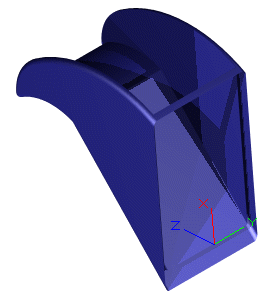
Edges blended to a radius of .75
